Shutdown (Windows)
When you are done, stop the container and detach the USB. This stops the container that was running MRTKLIB and the web UI, and frees up the ports. It also returns control of the receiver to Windows, so you can use it again with RxControl and similar tools.
Run stop.bat
Double-click scripts/windows/stop.bat to run it.
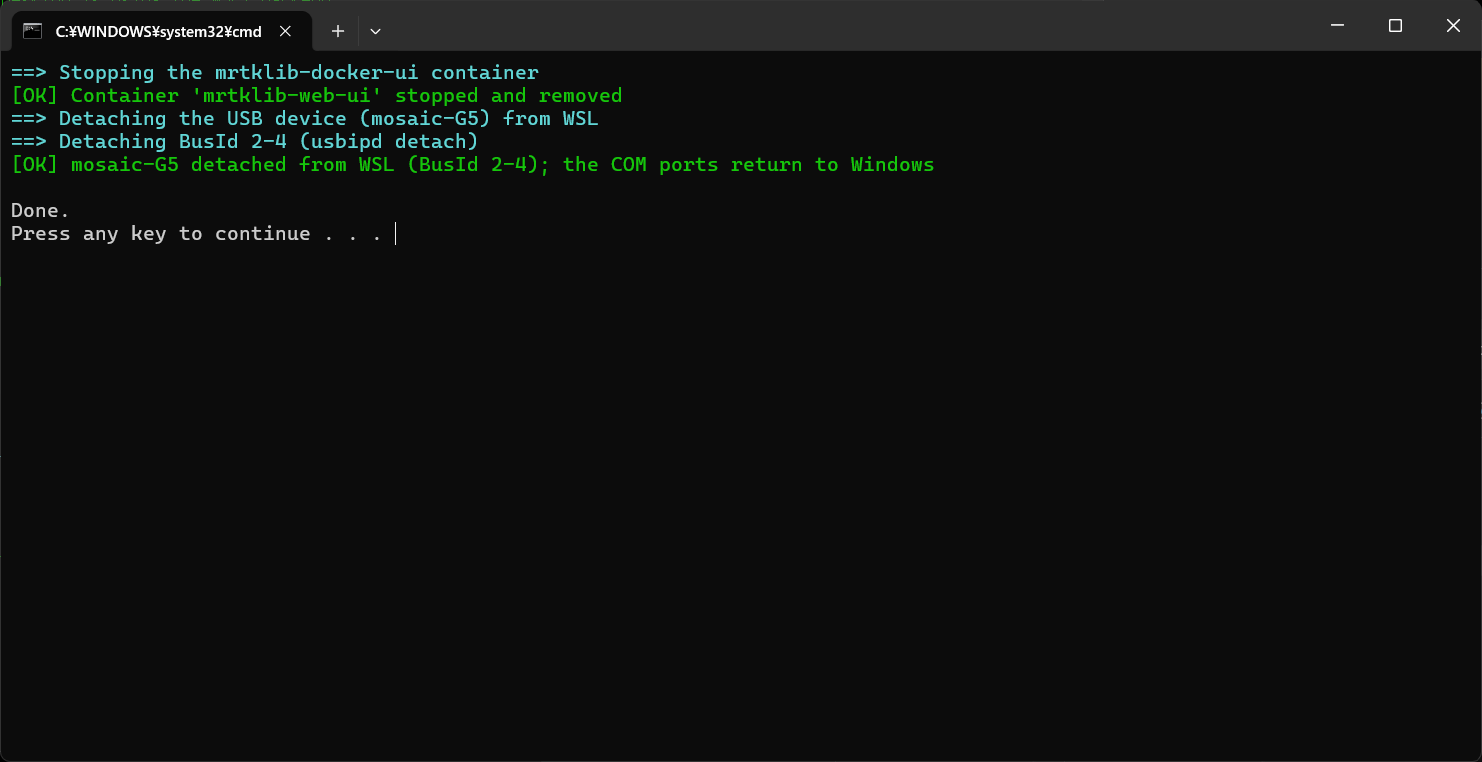
It performs the following steps, the reverse of start.bat.
- Stop the container: Stops and removes the
mrtklib-docker-uicontainer. - Detach the USB: Returns the receiver that was attached to WSL back to Windows.
When you run it, it is done once [OK] is displayed as shown below.
==> Stopping the mrtklib-docker-ui container
[OK] Container 'mrtklib-web-ui' stopped and removed
==> Detaching the USB device (mosaic-G5) from WSL
==> Detaching BusId 1-4 (usbipd detach)
[OK] mosaic-G5 detached from WSL (BusId 1-4); the COM ports return to Windows
Note
stop.bat does not require administrator privileges. Docker Desktop and WSL remain running, so you can run start.bat again next time as-is.
This completes the shutdown process.
Doing it manually
You can also clean up manually without using stop.bat.
Stop the container
Open Docker Desktop and, under Containers, click Stop and then Delete for mrtklib-web-ui.
Detach the USB
Running scripts\windows\detach.bat returns control of the receiver to Windows.
Note
If you want to quit Docker Desktop or WSL itself, select Quit Docker Desktop from the Docker Desktop menu.