Appendix: Receiver Setup
Note
The startup script (start.bat) performs the configuration in this chapter automatically. This chapter is a reference for cases where you want to understand how it works, or where the automatic configuration doesn't work and you need to configure / verify it manually.
Why this configuration is needed
Positioning with MADOCA-PPP applies the correction data delivered from QZSS L6 to the raw measurements (pseudorange and carrier phase) measured by the receiver itself, and performs the computation. Since the positioning computation is performed by the MRTKLIB engine inside the container, the receiver must be set to output both in SBF format. The configuration below is the minimum setup for this.
| Setting | Why it's needed |
|---|---|
| Track the QZSL6 signal | Needed to track and receive the L6 signal. This provides QZSRawL6E (MADOCA-PPP: orbit, clock, and bias corrections) and QZSRawL6D (wide-area ionospheric correction). |
| Track all constellations (All) | Needed to obtain raw measurements for the augmented GPS / GLONASS / Galileo / BeiDou / QZSS constellations. |
Output SBF to USB1 | The container reads SBF via USB serial. COM1 is a physical serial port and is not exposed over USB, so select USB1. |
Support message group | Bundles raw measurements (MeasEpoch), navigation data, and QZSRawL6D/E, providing the inputs required for PPP. |
Save to Boot | Needed so the configuration persists after power-cycling. |
The following are the steps to manually configure the above using the RxControl GUI (common to Windows / Linux; screenshots are from Windows).
Connecting the receiver (Windows, Linux)
Caution
Before reading this section, complete the "RxTools" installation (Windows) first.
Using a USB cable, connect the receiver to a Windows or Linux PC. When the connection succeeds, the receiver's PWR LED lights up red.
Configuring the receiver (Windows, Linux)
Note
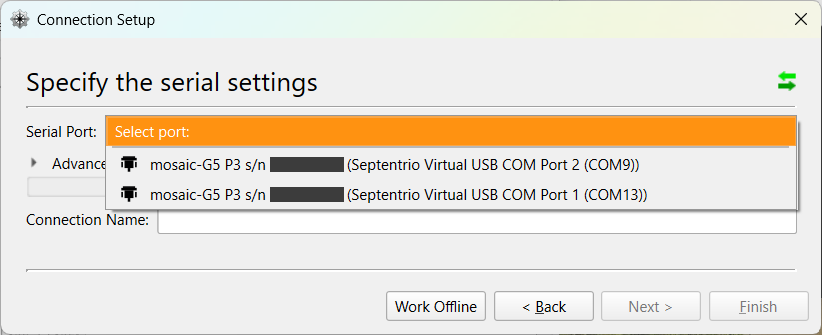
In RxControl, the naming of ports differs between dialogs (for example, Port 2 in the connection setup versus COM1 in the SBF output setup). This is how Septentrio's tool works. Since this can be confusing, at each step select exactly the port shown in the screenshot.
Launching RxControl
Launch RxControl.
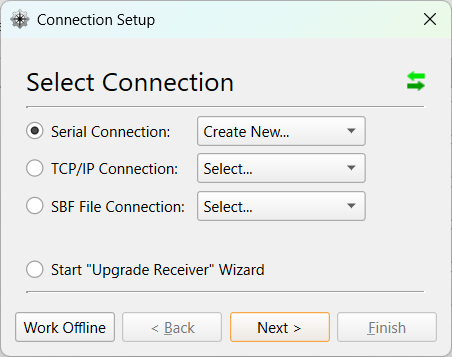
On first launch, the Connection Setup dialog appears. Select Serial Connection > Create New..., then click Next >.
Two COM ports for the connected receiver are shown under Serial Port; select Port 2. Set any name you like for Connection Name, then click Finish.
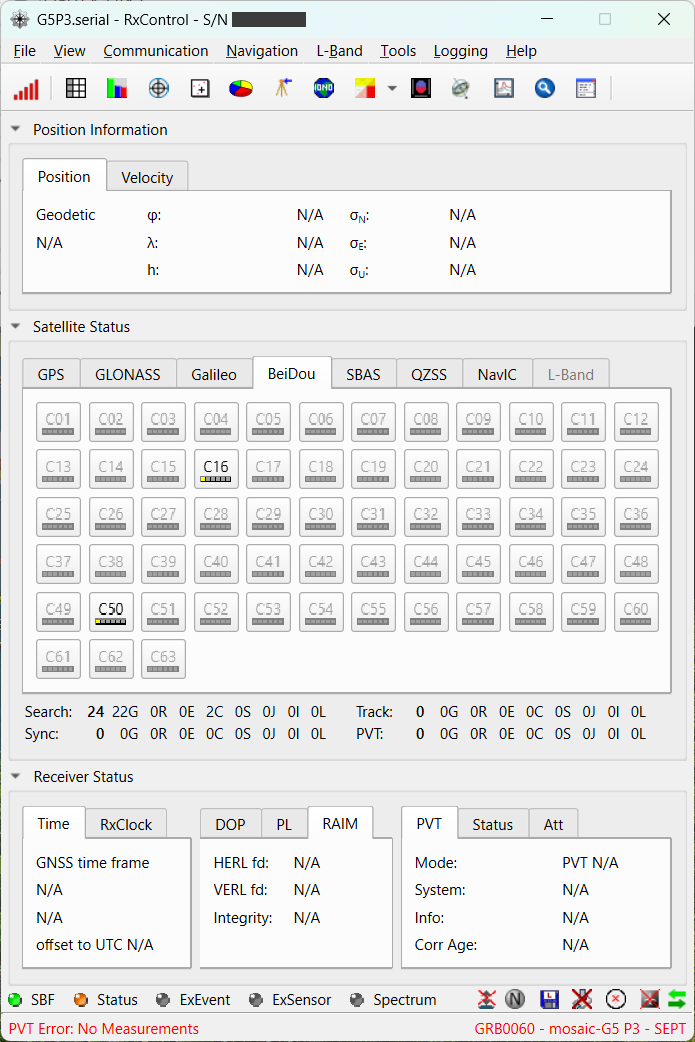
When the connection succeeds, the RxControl main screen appears.
Configuring satellite and signal tracking
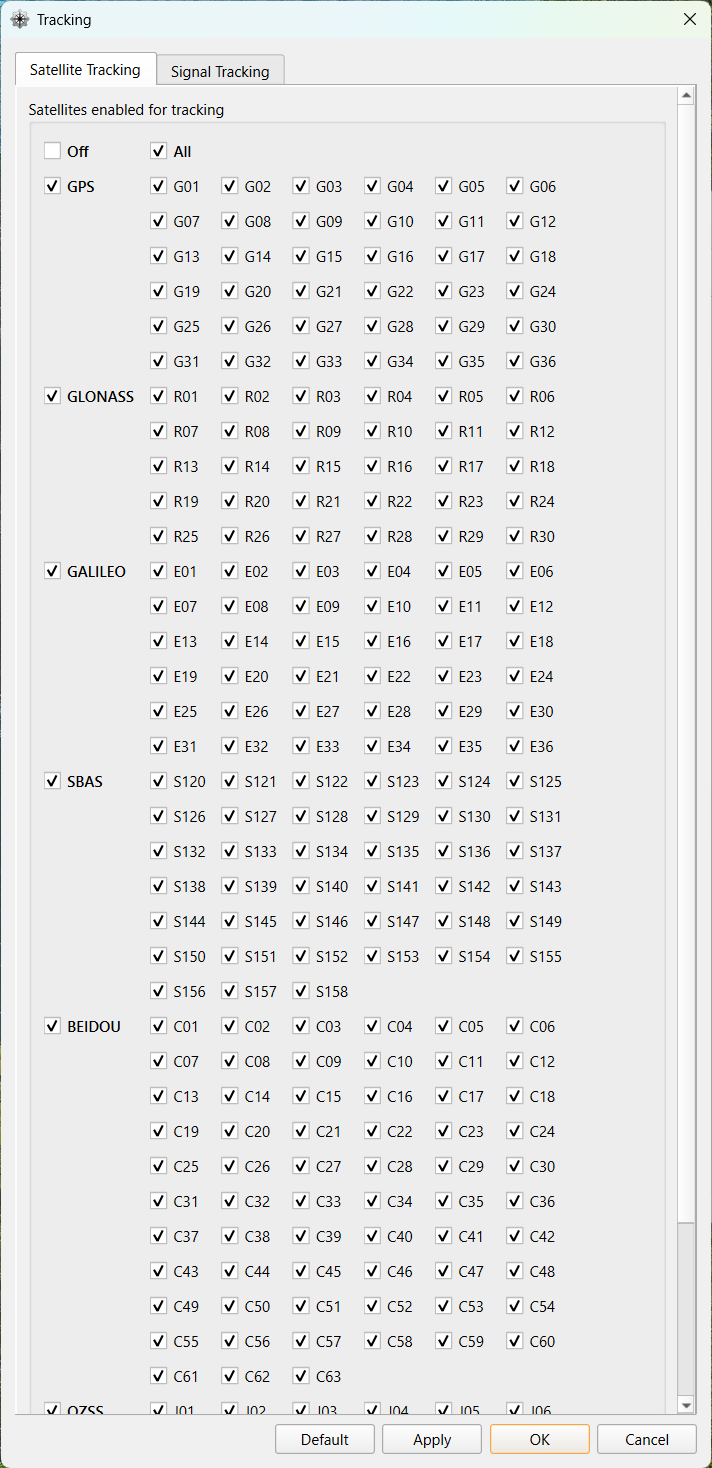
Open Navigation > Advanced User Settings > Tracking....
On the Satellite Tracking tab, check All.
Note
MADOCA-PPP supports GPS, GLONASS, Galileo, BDS, and QZSS.
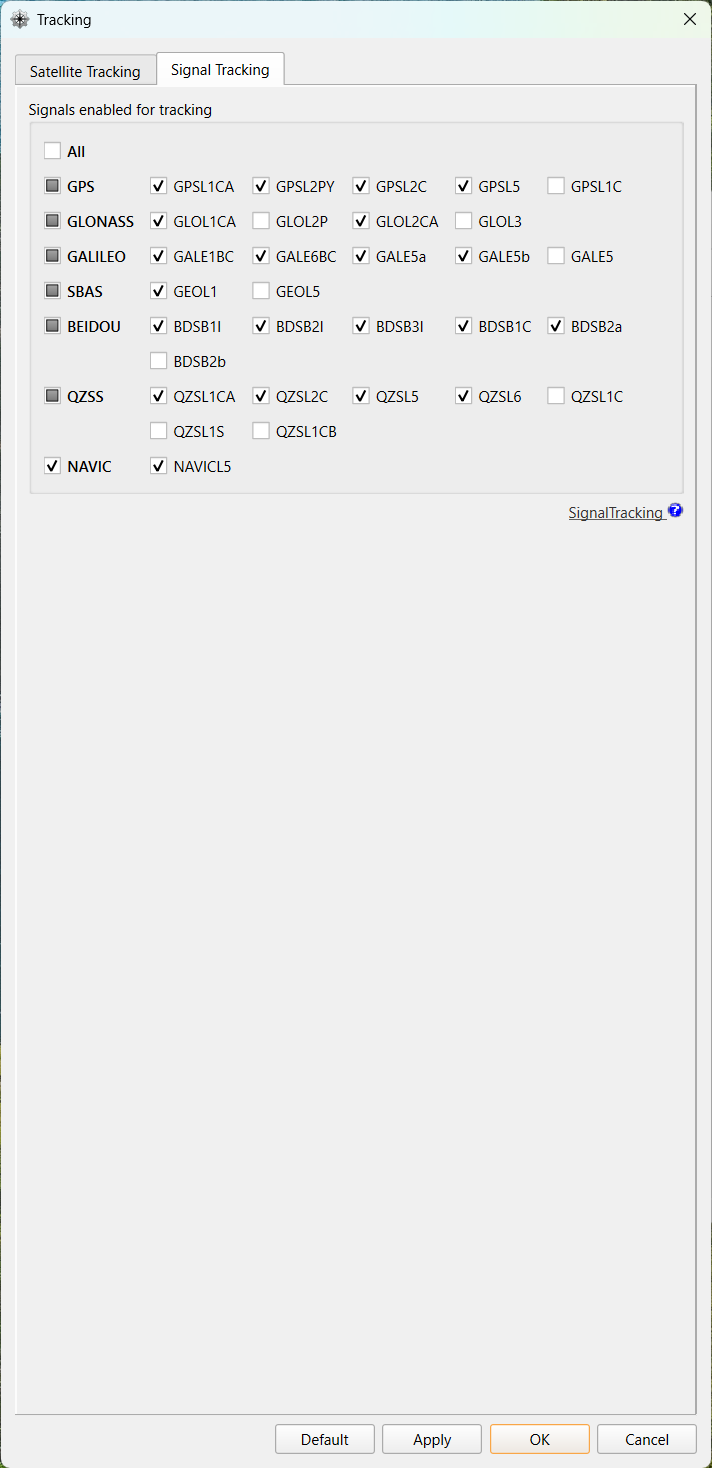
Next, on the Signal Tracking tab, check QZSL6.
Note
Using MADOCA-PPP requires QZSRawL6E. Here, since we perform PPP-AR/Iono positioning using the wide-area ionospheric correction that is under technical demonstration, QZSRawL6D is also required. Checking QZSL6 enables reception of QZSRawL6D and QZSRawL6E.
Finally, click Apply > OK to apply the configuration.
Configuring SBF output
Open Communication > Output Settings > SBF Output....
- Set
PortsforStream 1toUSB1, and checkSupportunderSBF Messages. - Set
Intervalto1 sec.
Important
Be sure to select USB1 as the output destination. COM1 is a physical serial port, so SBF will not reach the container over USB.
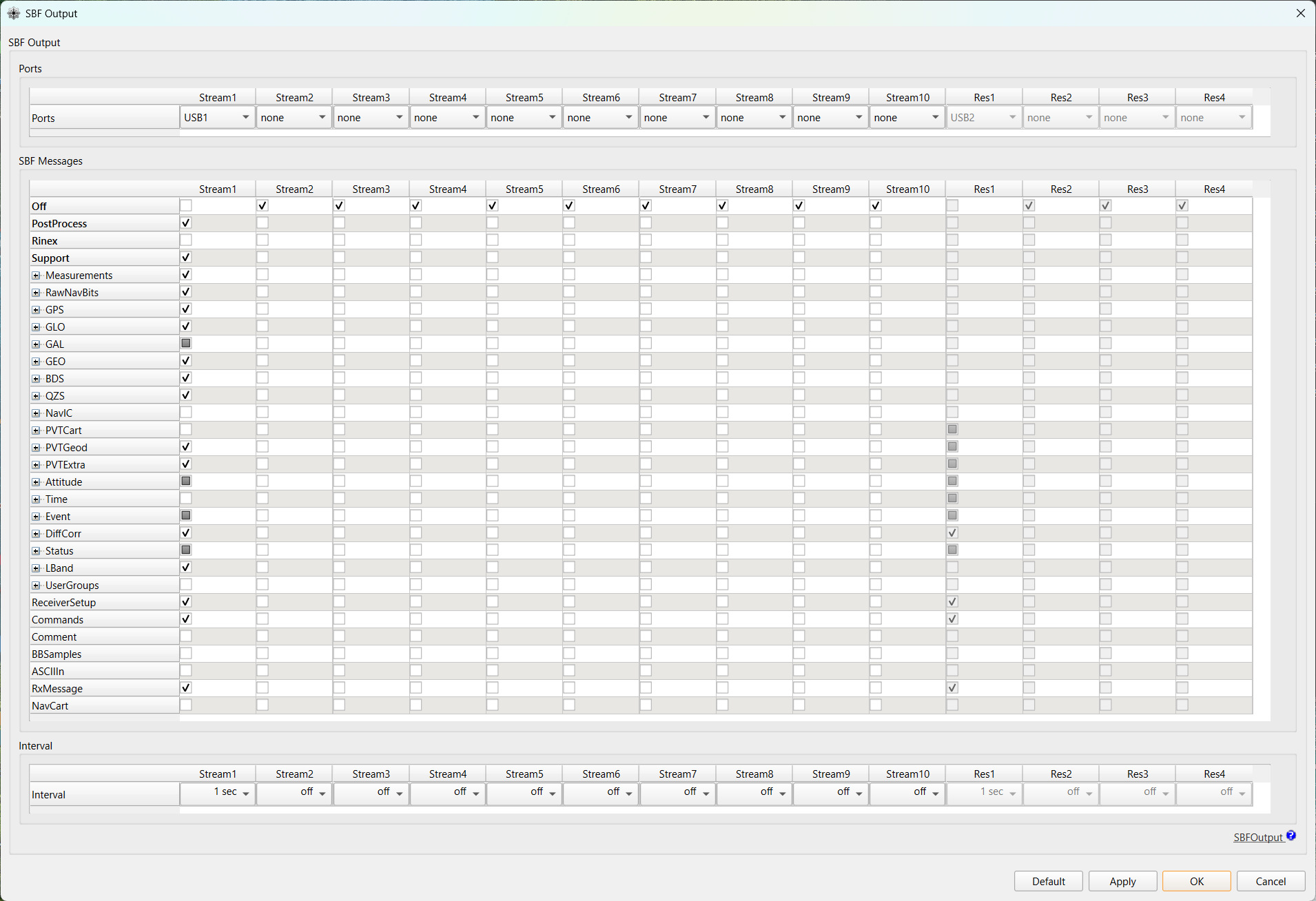
Finally, click Apply > OK to apply the configuration.
Saving the receiver configuration
Open File > Copy Configuration.
Set Source to Current and Target to Boot, then click Apply > OK to apply the configuration.
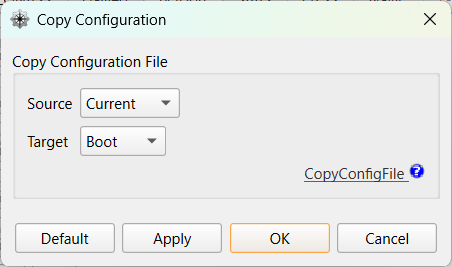
This completes the receiver configuration.
Configuring the receiver (macOS)
TBD