Appendix: Solution Output
Overview
MRTKLIB's positioning solution can be output externally in various forms for use elsewhere. This chapter explains how to configure each output method.
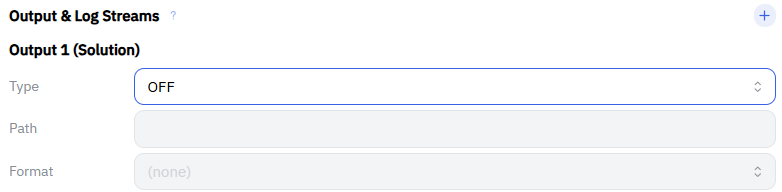
Output is configured in Output 1 (Solution) under Output & Log Streams in the UI. If you want to configure multiple outputs, click the + on the right side of Output & Log Streams to add more output configurations.
| Output method | Main use | Supported OS | Prerequisite |
|---|---|---|---|
| File | Save as a log for later analysis | Windows / macOS / Linux | None |
| TCP/IP Server | Receive in real time from another app or device | Windows / macOS / Linux | None |
| Serial (USB) | Stream in real time to an external device | Windows / Linux only | Required (manual) |
| NTRIP / TCP Client | Send to an external server | Windows / macOS / Linux | None |
Important
This chapter covers output of the positioning result (solution). The current mrtklib-docker-ui cannot save the raw data (SBF) arriving from the receiver as-is in parallel with real-time positioning. Support for saving raw data is being considered for the near future.
Selecting the output method
Click Type to select the output method from the dropdown.
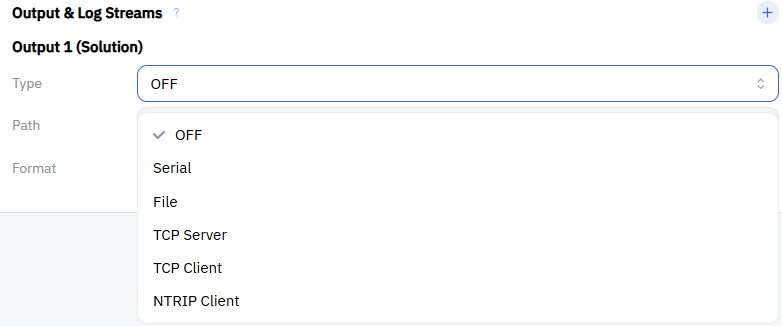
Once you select Type, you can enter Path and Format. The Path format differs by output method, so refer to the sections below. You can also view the list of Path formats from the ? icon to the right of the Output & Log Streams heading.
Selecting the output format
For Format, select NMEA. The positioning solution is output as NMEA sentences (such as $GPGGA), which most applications can interpret as-is.
File output
To output to a file, set Type and Path as follows.
| Item | Setting |
|---|---|
| Type | File |
| Path | /workspace/G5P6%n%H.nmea::S=1 |
| Format | NMEA |
/workspace is mounted from the host's {path to mrtklib-quickstart}/mrtklib-quickstart-data/workspace. In the example filename G5P6%n%H.nmea, G5P6 is the receiver name, %n is the day of year, and %H is the hour code (a=0, b=1, ..., x=23).
Important
Always specify Path as an absolute path starting with /workspace/. A relative path (e.g., workspace/out.nmea) is written to a different location inside the container, so it will not be visible from the host, and will be lost when the container is stopped or removed.
Time specifiers
In addition to %n and %H, the following specifiers are available.
| Specifier | Meaning |
|---|---|
%Y | Year (yyyy) |
%y | Year (yy) |
%m | Month (mm) |
%d | Day of Month (dd) |
%n | Day of Year (ddd) |
%W | GPS Week No. (wwww) |
%D | Day of Week |
%h | Hour (00-23) |
%M | Minute (00-59) |
%S | Second (00-59) |
%H | Hour code (a,b,...,x) |
File splitting
The ::S= appended to the end of the path specifies the interval at which the file is split, in hours.
| Setting | Behavior |
|---|---|
::S=1 | Switch to a new file every hour |
::S=24 | Switch every 24 hours |
::S=0.5 | Switch every 30 minutes |
| Not specified | Keep writing to a single file without splitting |
When using splitting, be sure to include a time specifier in the file name. If you don't, each switch will overwrite the file of the same name.
TCP/IP Server output
Run MRTKLIB as a TCP server, and connect from another application or device to receive the positioning solution.
| Item | Setting |
|---|---|
| Type | TCP Server |
| Path | :2101 |
| Format | NMEA |
For Path, write the port number after :.
Important
The number you specify here must match the port published by the startup script. If you specify a different number, you won't be able to connect from outside. Only $OutPort in scripts\windows\lib\common.ps1 (default 2101) is published. If you want to change it, see Change the port in use.
Verifying the connection
To verify from the same PC, run the following command in PowerShell. If TcpTestSucceeded : True is displayed, the port is reachable.
Note
This command only checks whether the port is reachable. To confirm that the positioning solution is actually flowing, verify that the connecting application can receive NMEA sentences.
To connect from another device, specify the IP address of the PC running MRTKLIB instead of localhost. You can check the IP address with the following command.
Note on the scope of exposure
Warning
By default, this port is published on 0.0.0.0 (all network interfaces), so any device on the same LAN can connect. MRTKLIB's TCP Server has no authentication feature. Please be careful when using it on an untrusted network, such as shared Wi-Fi.
Writing an address in Path does not change the scope of exposure. MRTKLIB's TCP Server always listens on all interfaces, regardless of what is written in the path. If you want to restrict it to the same PC only, rewrite the publish setting in scripts\windows\lib\run-container.ps1 as follows.
Serial (USB) output
Stream the positioning solution to an external device via a USB serial converter or similar.
Warning
Serial output is available only on Windows (via WSL) and Linux. Docker Desktop for Mac does not support serial device passthrough, so it is not available on macOS. On macOS, use TCP/IP Server output instead.
Important
Because the target devices vary widely, this is outside the scope of automatic configuration. The steps below are manual. Also, the device passed to the container can only be specified at startup. Be sure to connect the output device before running start.bat. If you connect it after the container has started, it will not be recognized.
Attaching the output device
Just like the receiver, the output device also needs to be attached to WSL.
Connect the output device via USB, then, in an administrator PowerShell (Run PowerShell as administrator), list the connected USB devices.
Check the BUSID of the output device, then share it and attach it to WSL. Replace X-Y with the BUSID you checked.
Check the device name on the WSL side.
Common USB serial converters such as FTDI, CP210x, and CH340 appear as something like /dev/ttyUSB0. Use the name you confirmed here in the next step and in the UI configuration.
Adding the device to the container
start.bat passes only the single port carrying the receiver's SBF to the container. To pass the output device as well, edit the following line in scripts\windows\lib\run-container.ps1.
$deviceArgs = @('--device', "${sbfDevice}:${ContainerDevice}",
                '--device', '/dev/ttyUSB0:/dev/ttyUSB0')
Replace /dev/ttyUSB0 with the name you confirmed in the previous step.
After editing, run stop.bat, then run start.bat again. The container is recreated, and the added device is passed through.
Note
If the output device is a CDC-ACM device such as an Arduino (one that appears as /dev/ttyACM*), the SBF port detection process in start.bat reads from that port for about 3 seconds at startup. Be careful with devices that have side effects when read from.
UI configuration
| Item | Setting |
|---|---|
| Type | Serial |
| Path | ttyUSB0:115200 |
| Format | NMEA |
Specify Path in the format device name:baud rate. The leading /dev/ is not needed. Set the baud rate to match the configuration on the output device side.
Note
ttyACM0 is the port used for the receiver input (Rover). Do not specify it as an output destination.
Detaching at shutdown
stop.bat only detaches the receiver (mosaic-G5). The output device you added remains attached to WSL, and stays invisible from Windows.
After running stop.bat, manually detach it in an administrator PowerShell.
NTRIP / TCP Client output
Send the positioning solution to an external server. Since MRTKLIB initiates the outbound connection, no port publishing is needed.
NTRIP
Send the positioning solution to an NTRIP caster.
| Item | Setting |
|---|---|
| Type | NTRIP Client |
| Path | [:passwd@]addr[:port]/mountpoint |
| Format | NMEA |
Important
The Type shown is NTRIP Client, but when configured as an output, it acts as an NTRIP server (the side that sends to the caster). Because of this, Path uses the format above, which differs from the NTRIP client format used on the input side (user:passwd@...). Do not specify a username — specify only the password and mount point.
Example: :mypassword@rtk2go.com:2101/MYMOUNT
TCP Client
Connect to any TCP server to send the positioning solution.
| Item | Setting |
|---|---|
| Type | TCP Client |
| Path | addr[:port] |
| Format | NMEA |
Example: 192.168.1.100:2101