Troubleshooting
If things are not working, first check the error message that was displayed (the [ERROR] line and the Next step: hint). Below are remedies organized by symptom.
Cannot install usbipd-win with winget
If you cannot proceed when running winget install ... dorssel.usbipd-win, because of an error like the following.
Failed in attempting to update the source: winget
0x8a15000f : Data required by the source is missing
No package found matching input criteria.
This happens when winget's package source (the package list index) has not been initialized, or is not registered for the current user profile. Resolve it in the following order.
-
Reset the source and fetch it again.
-
Re-run the install, automatically accepting the terms of use.
If this does not resolve the issue, install manually without winget. Download the latest usbipd-win_x.x.x.msi from usbipd-win's GitHub Releases and double-click it to install.
Note
This error also occurs when the winget source is not registered for the user profile that ran winget. In this case too, the manual install (.msi) above is the reliable option.
usbipd attach fails (no WSL distribution)
If you see usbipd attach failed, or the following message.
usbipd attach --wsl requires an actual WSL2 distribution (Ubuntu, in this guide). Docker Desktop's internal distribution (docker-desktop) is not recognized as an attach target.
- Install Ubuntu — If it is not installed yet, follow the steps in Install (Windows) to run
wsl --install -d Ubuntuand complete the initial setup (username and password). -
Check that it is running on WSL2 — Run the following command and confirm that
Ubuntuis listed withVERSIONset to2.
Cannot run due to a security warning
- "Open File - Security Warning" — Click Run.
- "Windows protected your PC" (SmartScreen) — Click More info; a Run anyway button appears, so click that. See Run (Windows) for details.
Administrator privileges error (usbipd bind failed)
If you see usbipd bind failed or a message that administrator privileges are required.
start.batrequests administrator privileges when it runs. For the prompt "Do you want to allow this app to make changes to your device?", select Yes. If you accidentally selected "No", runstart.batagain.
Receiver (COM port) not found
If you see No Septentrio COM port found or mosaic-G5 ... is not connected.
- Is the receiver connected via USB? — Reseat the cable and confirm that the receiver's
PWRLED is lit red. - Is RxTools installed? — The driver that lets the receiver be recognized as a USB serial device is provided by RxTools. If it is not installed, see Install (Windows).
- Is another application, such as RxControl, holding the COM port? — Having RxControl open occupies the COM port. Close it and try again.
- Has it already been attached to WSL? — Once attached to WSL, the COM port is no longer visible from Windows. Detach it with
scripts\windows\detach.batand try again.
Tip
If two Septentrio Virtual USB COM Port entries appear under "Ports (COM & LPT)" in Device Manager, Windows can recognize the receiver.
 Checking the COM port using Device Manager
SBF stream not detected
If you see No SBF stream detected on the receiver's ports, or both ports show 0 bytes during detection.
- Is the SBF output set to
USB1? — If output is going toCOM1(the physical serial port), it will not reach the USB side.start.batnormally configures this automatically, but if you have overridden it with a manual configuration, check Appendix: Receiver Setup. - Is
QZSL6tracking enabled? — Check whether the correction data (QZSRawL6D/E) is being output; see the same appendix. -
You see
permission denied for user ...— Serial devices inside WSL (/dev/ttyACM*) can only be read by root or a user in thedialoutgroup, and whether you are indialoutdepends on the Ubuntu version and setup method.start.batruns detection with root privileges (wsl -u root), so this error does not occur there, but it can appear if you run the detection script manually. To fix this permanently, run the following in the Ubuntu shell.After running it, execute
wsl --shutdownin PowerShell to apply the group change, then try again.
Note
The SBF Support group is output even when positioning has not been achieved. If both ports show 0 bytes, suspect the output port configuration rather than "satellites not visible".
Tip
You can check directly whether data from the receiver is reaching WSL with the following command (it reads both ttyACM ports in turn). The hex bytes 24 40 are the SBF sync bytes $@. Which port SBF appears on varies by environment, so do not judge based on checking only one. Also, if the container is running, it will be reading the same port and competing for the data, so stop it with docker stop mrtklib-web-ui before checking.
Docker Desktop is not running on the WSL2 backend
If either of the following errors is shown when running docker run.
docker: Error response from daemon: error gathering device information while adding custom device "/dev/ttyACM0": no such file or directory
If Docker Desktop is running on the Hyper-V backend, containers run on a virtual machine separate from WSL2. Because of this, the container cannot see the receiver device attached to WSL (Ubuntu) (no such file or directory), and mounting Windows folders can also be denied access (Access is denied).
First, check whether docker-desktop is registered with the following command.
If docker-desktop is not listed, it is running on the Hyper-V backend. Follow the steps in Install (Windows) to enable Use the WSL 2 based engine, turn on Ubuntu under WSL integration, and then run start.bat again.
Note
You can check whether the usbipd attach itself succeeded with the following command. If /dev/ttyACM0 and /dev/ttyACM1 are listed, the devices have reached the WSL side successfully.
Container does not start
If you see docker run failed or docker command not found, or startup does not proceed.
- Is Docker Desktop running? — Hover over the 🐳 icon in the taskbar's hidden icons and confirm
Docker Desktop running. If it is not running, start Docker Desktop and try again.- If the logged-in user and the administrator user are different → Run Docker Desktop as administrator
- You see
... workspace: Access is deniedor... no such file or directory— This often happens when Docker Desktop is not running on the WSL2 backend. See Docker Desktop is not running on the WSL2 backend. docker command not found— Docker Desktop itself is not installed. See Install (Windows).- Port 8080 / 2101 is in use — If an existing container or another application is using these ports, startup fails. See Cannot start because a port is in use for details.
- Pulling the image is slow / fails — The first run takes a few minutes to download the image. Check your network connection and try again after a while.
-
It stops right after starting — Check the logs with the following command.
Cannot start because a port is in use
The container uses two ports. If either one is occupied, docker run fails and the container does not start.
| Port | Purpose |
|---|---|
8080 | web UI (MRTKLIB Console) |
2101 | TCP/IP output of the positioning solution (Appendix: Solution Output) |
Note
2101 is reserved at startup even if you are not using TCP/IP output. Even if you do not plan to use the output feature, startup fails if this port is occupied.
The following error is displayed.
docker: Error response from daemon: Ports are not available: exposing port TCP 0.0.0.0:2101 -> 127.0.0.1:0: listen tcp 0.0.0.0:2101: bind: Only one usage of each socket address ... is normally permitted.
A previous container is still present
This is the most common cause. Remove it with the following command, then run start.bat again.
Another application is using the port
Find the PID of the process using the port with the following command.
The rightmost column of the displayed line is the PID. You can check the process name with the following command.
If you cannot close that application, see Change the port in use.
Windows has reserved the port
If startup fails even though netstat shows nothing, and you see an error like the following, Windows (Hyper-V / WinNAT) may have reserved the port range.
You can check the reserved range with the following command. Run it in an administrator PowerShell (Run PowerShell as administrator).
If the displayed range includes 8080 or 2101, restarting WinNAT may release the reservation.
If it is not released, see Change the port in use.
Change the port in use
Rewrite the following values, near the top of scripts\windows\lib\common.ps1, to unused port numbers.
$HostPort      = 8080   # web UI (MRTKLIB Console)
$OutPort       = 2101   # TCP/IP output of the solution
Note
These two values are defined in one place in common.ps1 and are referenced by both the prerequisite checks and the container startup. You do not need to edit any other file.
Important
If you change $OutPort, also match the TCP Server port number set in Output & Log Streams in the UI to the same value. If the numbers do not match, external connections will not work.
Run Docker Desktop as administrator
If the logged-in user and the administrator user are different, you need to run Docker Desktop as administrator. If Docker Desktop is already running, first stop it using the steps below.
Stopping Docker Desktop
Show the hidden icons from the ^ on the taskbar. Hover over the 🐳 icon, right-click, and click Quit Docker Desktop to exit.
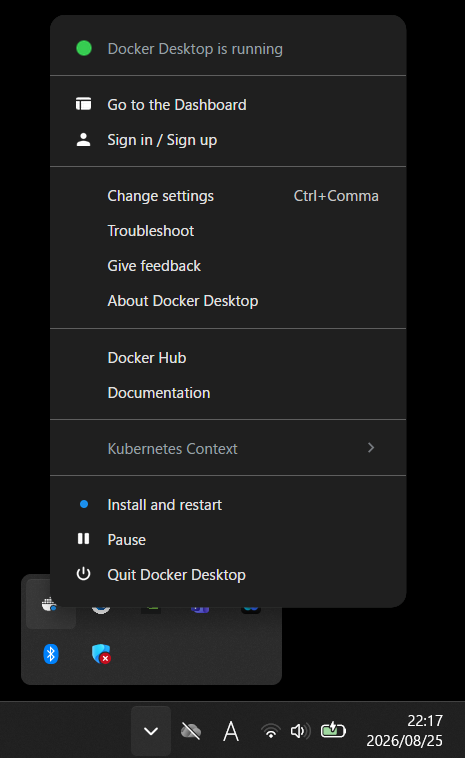
Starting Docker Desktop
Search for Docker Desktop in the Windows Start menu, right-click it, and click Run as administrator.
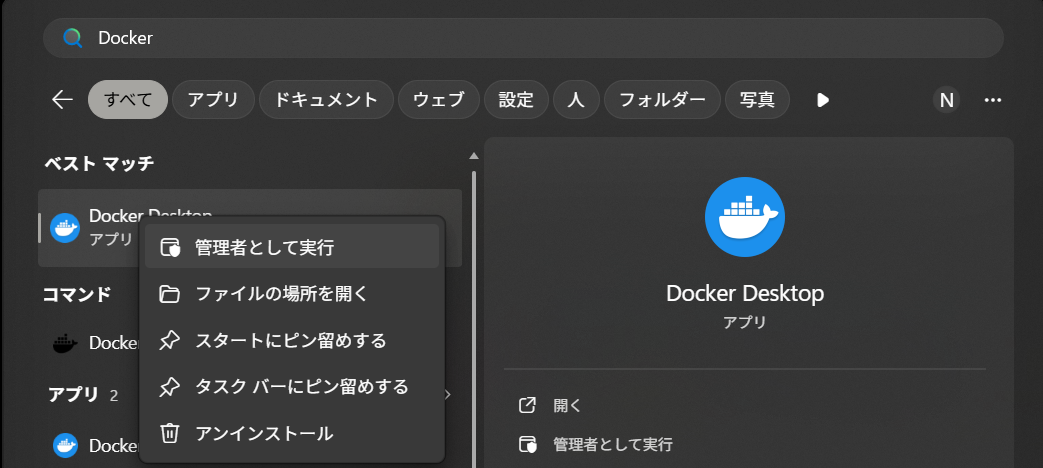
If you relaunched it as administrator, note that Docker Desktop settings are saved per user, so go through Configure the Docker Desktop backend again.
UI does not open in the browser
- Fetching the image takes time on the first run — Even if the startup wait times out, the container may still be running. Wait a moment, then manually open http://localhost:8080.
-
Check whether the container is running — Check whether
mrtklib-web-uishowsUpwith the following command. If it is not listed, runstart.batagain.When it is running
PowerShellCONTAINER ID IMAGE COMMAND CREATED STATUS PORTS NAMES afa58c127340 hatognss/mrtklib-docker-ui:0.3.0-alpha "uvicorn mrtklib_web…" 47 seconds ago Up 46 seconds (healthy) 0.0.0.0:8080->8000/tcp, [::]:8080->8000/tcp mrtklib-web-uiWhen it is not running
Positioning does not start / does not reach FIX
- Is
Pathin the UI correct? — Set it tottyACM0(no leading/dev/needed). The startup script always maps the port that SBF is on to/dev/ttyACM0inside the container, so this value is fixed regardless of environment (Using the UI). - Is the antenna obstructed? — Satellites cannot be acquired indoors or in places where the sky is blocked. Place the antenna somewhere with a clear view of the sky.
- Acquiring navigation data takes time on the first run — Wait a few minutes for positioning to start.
- Is QZSS L6 being received? — MADOCA-PPP requires the QZSS L6 correction data. Check QZS visibility (elevation) (GNSS View).